Accordion Menu

Recent Post

Total Pageviews

Contact Us

Name

Email *

Message *

Powered by Blogger.

Pages - Menu

Popular Posts

Games & Multimedia

SCIENCE & TECHNOLOGY

Gagdet

Search Bar

How to install window 7 using USB (easy way)

Unknown     7:27 AM     0
rhonzhow.blogspot.com
The fastest way to installwindows 7 is from abootable usb drive. You can cut the install time down to around 15 minutes compared with 30-40 via DVD if you use a fast drive.
People still asking me to explain what is the best way to do this as many of the guides online are too complex, or require third party software which doesn’t always work as they supposed to.
With this BootableUSB guide all you need to ensure is that your motherboard supports USB booting, and this is a common feature now for most of the computers.
Today I am going to publish a step by step guide which works perfectly and doesn’t require any additional tools – I have been doing it for some time now to create bootable Windows install drives.
You need to get hold of a fast USB 2.0 flash drive. It doesn’t need to be 32GB or bigger,however, all you need is a 4GB unit. The faster it is, the better.
What you need:
– Windows 7 DVD install disc or ISO image
– USB Drive (4GB+ and as fast as you can get)
– Running Windows Operating system
– Working set of hands and eyes
– A few minutes of your life
Plug in your USB drive in the USB port:
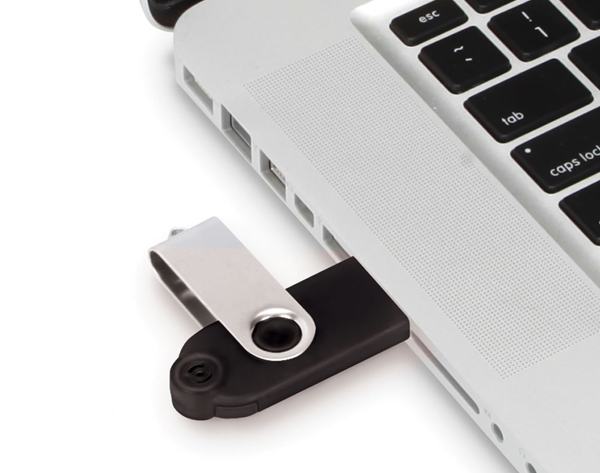
Usb Drive Plugged
Before going any further, make sure you have removed any important files on your drive to a safe location, what we are about to do next is to erase the entire contents of the drive.
Insert your DVD of Windows 7 into the computer, but don’t start the normal install process.
Open your ‘My Computer’ and make a note of the drive numbers of both the USB drive and the DVD drive with Windows 7 files on it.
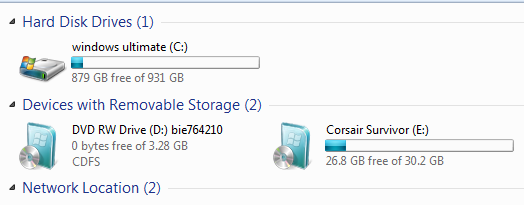
Usb And Computer Drives

As you can see from the image above, the DVD drive is drive has letter D assigned and the USB drive is E.
Open the command prompt with admin rights. Type cmd in Start menu search box and hit Shift+Ctrl+Enter.
To keep things really easy, if you see text in upper case, it means this is what you type into the command prompt (you don’t need to type in upper case).
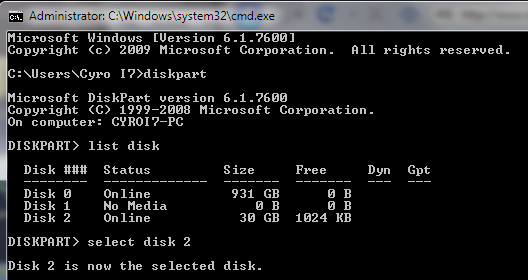
cmd-prompt-usb-bootable

Next type
DISKPART
this loads the diskpart application we need to proceed
Then type
LIST DISK
the image above shows our 32 GB USB drive is listed as DISK 2
so you have to type
SELECT DISK 2 (your USB Drive may have a different number, don’t follow exactly this text it depends on your usb drive)
You will get a successful response “Disk 2 is now the selected disk”

Clean Cmd USB Drive
Next we want to clean the USB drive
Type:
CLEAN
you will get a successful response ‘DiskPart succeeded in cleaning the disk”.
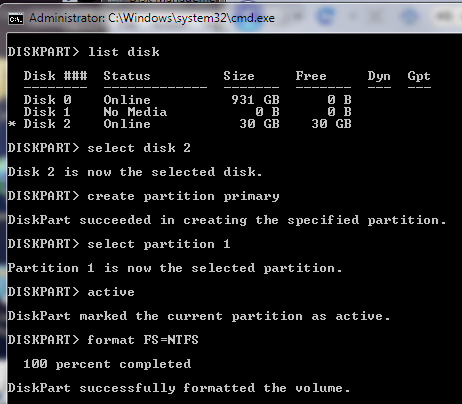
Clean USB Drive

After the drive is cleaned follow the list in the image above (detailed below in list order) – you can also note the successful text responses from the OS as you enter each command.
SELECT DISK 2 (or what number your USB drive has)
CREATE PARTITION PRIMARY
SELECT PARTITION 1
ACTIVE
FORMAT FS=NTFS
Formatting can take a little time depending on the size of the drive, our 32GB unit took about 10 minutes to format - you will see a percentage readout until it is finished.
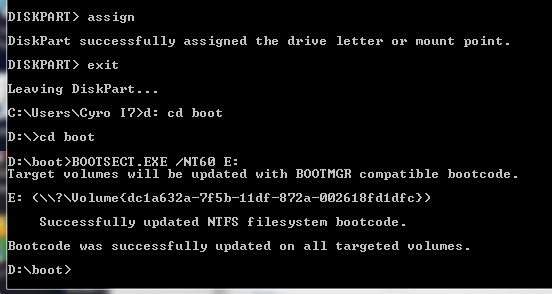
Bootable USB Final Cmd Prompt
Next type:
ASSIGN
EXIT (DISK PART will exit)
Type D: CD BOOT (substitute the “D” if necessary with the letter of your Windows 7 DVD drive)
then key
CD BOOT
then
BOOTSECT.EXE /NT60 E: (substitute the “E” if necessary with the letter of your now ready USB drive) – we are telling the system to create a boot sector file on the USB drive.
Now you can exit the command prompt and copy all the files on the Windows 7 DVD to the USB drive.
Once this step is finished you’ll be ready to boot from this drive, all you need to do is configure your motherboard bios setup to boot first from USB rather than hard drive or optical drive. If you don’t know how to do this, refer to your specific motherboard manual or search the internet.
Now, Windows 7 installation should take between 40% and 60% of the time it does from the DVD disc.
Last step: Drink a cup of tea, from now on you can do this again and again 

How to speedup Internet Connection Legit

Unknown     6:50 AM     0

Speed Up Internet Connection
This day and age we are used to life at its top speed thanks to various means of instant communication. That's why there are very few things that are more frustrating than slow Internet that can basically turn your life into a nightmare. Sometimes speeding up Internet is a simple question of upgrading your plan or changing your service provider.
However, sometimes even users who are paying for high speed Internet access can experience surprisingly slow Internet connection. Fortunately, there are ways to speed up Internet without having to change your ISP or buying a more powerful computer. Here are some tips on how to speed up your computerInternet connection without too much hassle.
1. Talk to your provider

First of all, call your service provider and check whether they are doing their job properly and delivering the service you are paying for. Or perhaps your package is outdated and the company will upgrade you to a better one either for free or for a small upgrade fee.
Keep in mind, though, that very few people are getting the top speed (remember the words "up to" in your contract?) because of distance exchange, congestion, and traffic shaping.

2. Find the browser that works for you

Most people still use Internet Explorer, even though it's not the fastest browser out there. If you are an active Internet user, it would be a good idea to check out different browsers, like Chrome, Firefox, and Opera to see which one works best for your connection type and your hardware configuration. For example, Chrome is particularly good for computers that are low on RAM, as it's not as memory hungry as Firefox and IE.


3. Tweak your router

If you are using a router, you can probably speed up Internet by adjusting the router settings. There are too many routers to give specific advice, but most routers can be tweaked to open up ports and boost your Internet speed. Just check the manual for things that can be done to improve performance or use Google to find answers for your particular router.
Before you do any tweaking, check whether you are close enough to the router when you use the Internet. Being too far away from it can make the connection really slow and unstable.
Another thing you should try before changing any settings is to restart your router. Sometimes this simple action can dramatically speed up your Internet connection.

4. Prevent unauthorized access

If you are using wireless Internet connection, make sure that you are not sharing it with the whole neighbourhood. The more people use your connection, the slower it is for you. So at the very least set up a WEP password to stop unauthorised users from using your Internet connection. Or if your hardware is compatible, set up WPA encryption.

5. Control your bandwidth usage

There are many applications that will use your bandwidth in the background, like Windows Update, Windows Live Messenger, Skype, Real player, Adobe Reader updates, and other similar software. Most of them usually start automatically when you log on to Windows and connect to the Internet as soon as there is a connection. This means that these programs use your bandwidth when you are not actually using them.
Most of these applications can be configured not to start on Windows log-on or to at least ask permission to connect to the Internet. If you are not sure which programs are secretly using your bandwidth, you can use a free tool called Auslogics Task Manager. With the help of this program you can track which applications and processes are consuming your network traffic.
If your Internet connection speed dropped all of a sudden for no apparent reason, check your computer for malware and spyware. Malicious software often uses your Internet connection to send information to its developers.

6. Perform some basic PC maintenance

If your computer is slow, it doesn't matter how fast your Internet connection is – everything will be slow because you computer can't cope. The answer to that is to keep your computer in good shape and perform regular maintenance like disk cleanup and defrag, registry repair, and other tasks like monitoring your startup items and optimizing Windows services. This way you will not only speed upcomputerperformance, but also speed up your Internet connection.
There are many tools that will help you do the job, from the Windows built-in ones to complete PC optimization suites like Auslogics BoostSpeed that offers one-click maintenance and advanced tools to improve computer performance even more. It also has a tool called Internet Optimizer that will help you optimize your Internet connection for maximum speed.

What is SpreadSheet Programm

Unknown     3:29 AM     0
 
A spreadsheet is an interactive computer application program for organization and analysis of data in tabular form. Spreadsheets developed as computerized simulations of paper accounting worksheets. The program operates on data represented as cells of an array, organized in rows and columns. Each cell of the array is a model–view–controller element that can contain either numeric or text data, or the results of formulas that automatically calculate and display a value based on the contents of other cells.
The user of the spreadsheet can make changes in any stored value and observe the effects on calculated values. This makes the spreadsheet useful for "what-if" analysis since many cases can be rapidly investigated without tedious manual recalculation. Modern spreadsheet software can have multiple interacting sheets, and can display data either as text and numerals, or in graphical form.
In addition to the fundamental operations of arithmetic and mathematical functions, modern spreadsheets provide built-in functions for common financial and statistical operations. Such calculations as net present value or standard deviation can be applied to tabular data with a pre-programmed function in a formula. Spreadsheet programs also provide conditional expressions, functions to convert between text and numbers, and functions that operate on strings of text.

Spreadsheets have now replaced paper-based systems throughout the business world. Although they were first developed for accounting or bookkeeping tasks, they now are used extensively in any context where tabular lists are built, sorted and shared.
VisiCalc was the first electronic spreadsheet on a microcomputer, and it helped turn the Apple II computer into a popular and widely used system. Lotus 1-2-3 was the leading spreadsheet when DOS was the dominant operating system. Excel now has the largest market share on the Windows and Macintosh platforms.[1][2][3] A spreadsheet program is a standard feature of an office productivity suite; since the advent of web apps, office suites now also exist in web app form.

What is HTML (Hypertxt Markup Language)

Unknown     3:18 AM     0
HTML or HyperText Markup Language is the standard markup language used to create web pages.
HTML is written in the form of HTML elements consisting of tags enclosed in angle brackets (like <html>). HTML tags most commonly come in pairs like <h1> and </h1>, although some tags represent empty elements and so are unpaired, for example <img>. The first tag in a pair is the start tag, and the second tag is the end tag (they are also called opening tags and closing tags).
The purpose of a web browser is to read HTML documents and compose them into visible or audible web pages. The browser does not display the HTML tags, but uses the tags to interpret the content of the page. HTML describes the structure of a website semantically along with cues for presentation, making it a markup language rather than a programming language.
HTML elements form the building blocks of all websites. HTML allows images and objects to be embedded and can be used to create interactive forms. It provides a means to create structured documents by denoting structural semantics for text such as headings, paragraphs, lists, links, quotes and other items. It can embed scripts written in languages such as JavaScript which affect the behavior of HTML web pages.
Web browsers can also refer to Cascading Style Sheets (CSS) to define the look and layout of text and other material. The W3C, maintainer of both the HTML and the CSS standards, encourages the use of CSS over explicit presentational HTML.


+Rhonz Fuentebella 

What is HTTP (Hypertxt Transpfer Protocol)

Unknown     3:14 AM     0
  Rhonzhow.blogspot.com
 
 The Hypertext Transfer Protocol is an application protocol for distributed, collaborative, hypermedia information systems. HTTP is the foundation of data communication for the World Wide Web. 

Related topics
HTTP is designed to permit intermediate network elements to improve or enable communications between clients and servers
Explore: Web server
Web filtering proxies are not able to peer inside secure sockets HTTP transactions, assuming the chain-of-trust of SSL/TLS has not been tampered with. RhonzHow
Explore: Proxy server
FTP is the preferred method of exchanging files because it's faster than other protocols like HTTP or POP. dynamicwebs.com.au
RhonzHow
Rhonzhow.blogspot.comRhonzhow.blogspot.com

All about rooting your Android Phone

Unknown     3:05 AM     0
Everything You Need to Know About Rooting Your Android PhoneExpand
We love Android, but rooting your phone can give you the opportunity to do so much more than your phone can do out of the box—whether it's wireless tethering, speeding it up with overclocking, or customizing the look of your phone with themes. Here's what you need to know about the rooting process, and where to find a guide for your phone.
Update: This used to be our always up-to-date rooting guide, which proved to be too large an undertaking for us to keep up. It was a nice try, but seeing as we only have a few Android phones to test, we couldn't reliably keep it up to date. So, we've changed this guide into more of a general resource for those of you that want to get into rooting (though many of the old comments still remain).
Check out the glossary below to get acquainted with important rooting terms, then check out the FAQ for more info on your burning questions. When you're ready, check out the last section for resources on your specific device. We can't give you the instructions ourselves, but hopefully we can give you a push in the right direction and make the process easier for you.

What Is Rooting, Exactly?

Everything You Need to Know About Rooting Your Android Phone
Rooting, for those of you that don't know, means giving yourself root permissions on your phone. It's similar running programs as administrators in Windows, or running a command with sudo in Linux. With a rooted phone, you can run apps that require access to certain system settings, as well as flash custom ROMs to your phone, which add all sorts of extra features. If you're on the fence about rooting, check out our top 10 reasons to root your Android phone for some motivation.


There are a ton of different Android phones out there, and while some rooting methods might work for multiple phones, there is no one-size-fits-all guide for rooting every phone out there. But, there are a lot of things you should know about rooting before you start, and this guide should help you out.

Glossary of Rooting Terms

Everything You Need to Know About Rooting Your Android Phone
As you learn more about the rooting process, you'll probably run into a bunch of terms that can be confusing. Here are some of the most important ones and what they mean.
If there are any other terms you think we should add, let us know and we'll put them in!
  • Root: Rooting means you have root access to your device—that is, it can run the sudo command, and has enhanced privileges allowing it to run apps like Wireless Tether or SetCPU. You can root either by installing the Superuser application or by flashing a custom ROM that includes root access.
  • ROM: A ROM is a modified version of Android. It may contain extra features, a different look, speed enhancements, or even a version of Android that hasn't been released for your phone yet. We won't discuss ROMs in depth here, but if you want to use one once you're rooted, you can read more about doing that here.
  • Kernel: A kernel is the component of your operating system that manages communications between your software and hardware. There are a lot of custom kernels out there for most phones, many of which can speed up your phone and increase your battery life, among other things. Be careful with kernels, though, as a bad one can cause serious problems with your phone and possibly even brick it.
  • Radio: Radios are part of your phone's firmware. Your radio controls your cellular data, GPS, Wi-Fi, and other things like that. You can sometimes find custom radios for your phone that you can flash yourself, but beware as sometimes these can cause problems.
  • Flash: Flashing essentially means installing something on your device, whether it be a ROM, a kernel, or a recovery (see below) that comes in the form of a ZIP file. Sometimes the rooting process requires flashing a ZIP file, sometimes it doesn't.
  • Brick: To brick your phone is to break it during flashing or other acts. There is always a small risk with flashing, and if your phone becomes unable to function—that is, it basically becomes a brick—you've bricked your phone. The risk is very small, however, and more often than not people say "brick" when they really mean "it turns on but doesn't boot properly," which is a very fixable problem. See the FAQ below for more information.
  • Bootloader: Your bootloader is the lowest level of software on your phone, running all the code that's necessary to start your operating system. Most bootloaders come locked, meaning you can't flash custom recoveries or ROMs. Unlocking your bootloader doesn't root your phone directly, but it does allow you to root and/or flash custom ROMs if you so desire.
  • Recovery: Your recovery is the software on your phone that lets you make backups, flash ROMs, and perform other system-level tasks. The default recovery on your phone can't do much, but you can flash a custom recovery—like ClockworkMod or TWRP—after you've unlocked your bootloader that will give you much more control over your device. This is often an integral part of the rooting process.
  • Nandroid: From most third-party recovery modules, you can make backups of your phone called nandroid backups. It's essentially a system image of your phone: Everything exactly how it is right now. That way, if you flash something that breaks your phone, you can just flash back to your most recent nandroid backup to return everything to normal. This is different from using an app like Titanium Backup that just backs up apps and/or settings—nandroid backups backup the entire system as one image. Titanium backups are best when switching between ROMs or phones.
  • ADB: ADB stands for Android Debug Bridge, and it's a command line tool for your computer that can communicate with an Android device you've connected to it. It's part of the Android Software Developers Kit (SDK). Many of the root tools you'll find use ADB, whether you're typing the commands yourself or not. Unless the instructions call for installing the SDK and running ADB commands, you won't need to mess with it—you'll just need to know that it's what most of the tools use to root your phone.
  • S-OFF: HTC phones use a feature called Signature Verification in HBOOT, their bootloader. By default, your phone has S-ON, which means it blocks you from flashing radio images—the code that manages your data, Wi-Fi, and GPS connections. Switching your phone to S-OFF lets you flash new radios. Rooting doesn't require S-OFF, but many rooting tools will give you S-OFF in addition to root access, which is nice.
  • RUU, SBF, and OPS: ROM Upgrade Utilities (for HTC phones), System Boot Files (for Motorola phones), and OPS and PIT files (for Samsung phones) are files direct from the manufacturer that change the software on your phone. RUU and SBF files are how the manufacturers deliver your over-the-air upgrades, and modders often post leaked RUU and SBF files for flashing when the updates haven't been released yet. They're also handy when downgrading your phone, if a rooting method isn't available for the newest software version yet. You can flash RUUs right from your HTC phone, but Motorola users will need a Windows program called RSD Lite to flash SBF files, and Samsung users will need a tool called Odin to flash OPS and PIT files (note there is a specific version of Odin for each device).

Frequently Asked Rooting Questions

Everything You Need to Know About Rooting Your Android PhoneExpand
People have a lot of questions about rooting, and we hear them all the time. Here are some of the most frequently asked, laid out so you don't have to ask someone else.
What's the difference between rooting, unlocking, and flashing a ROM? This can be confusing, since the three practices are often performed at the same time. We've detailed some of this above, but briefly: Unlocking your bootloader is usually the first step in the process and allows you to flash a custom recovery. From there, you can then give yourself root access or flash a ROM. Root access isn't required to flash a ROM, but almost all custom ROMs will come with root access built-in.
Note that when we say "unlock" in this guide, we mean unlocking your bootloader—not unlocking your phone to use a different carrier, which is a completely different thing and doesn't always require hacking (since you can often purchase carrier-unlocked phones directly from Google or elsewhere).


Can I unroot my phone? Yes. If you decide you don't like being rooted, you can often find instructions on unrooting your phone as well. Usually it involves flashing an RUU, SBF, or something similar to return the phone to truly stock settings.
Is rooting illegal? No. Technically, it once was, but exceptions to the DCMA have made it legal for most phones (but not necessarily tablets). Either way, it's hard to imagine anyone actually enforcing this rule (much like ripping DVDs for your own personal use).


Will rooting void my warranty? Yes. Unlocking your bootloader will void the warranty on your phone, even if your manufacturer provides a way for you to do it. That said, if you need warranty service for a hardware issue, you can sometimes unroot your phone and take it in for service with no one the wiser. However, some phones have a digital "switch" that flips when you unlock your phone that is very difficult or impossible to revert, so do your research before unlocking if you want to preserve your warranty.
Could rooting brick my phone? It's possible, but pretty unlikely. As long as you follow instructions well, you probably won't brick anything (but we're not responsible yadda yadda yadda). Flashing custom kernels and radios is a little riskier than just rooting or flashing ROMs, but again, if you follow directions you should be okay. Keep in mind that bricking means your phone means it won't turn on or function at all—if you're stuck in a boot loop or boot straight to recovery, your phone is not bricked, and it can be fixed.


Are any phones unrootable? This is a tough question. In the past, many manufacturers have tried to make "unrootable" phones with harsher protections (like the Droid X), but they're usually still rootable in some way, shape, or form. The more likely scenario is that, if you get a new phone or a phone that had a recent update, that a root exploit isn't available yet. In that case, you may have to wait a few months before you're able to root it. This is one of the reasons we recommend buying a Nexus.


Will I still get over-the-air (OTA) updates? Will downloading them break my root? If you root your phone without flashing a custom ROM, then you will likely still get OTA updates from your carrier, and they will break your root. We highly recommend against downloading these updates, since you may not be able to re-root your phone for awhile after updating. Alternatively, you can use an app like OTA Rootkeeper that will help you keep your root access (though it doesn't work with every version of Android).
If you flash a custom ROM, you will not get OTA updates from your carrier. You may, howaever, get notifications for updates to your specific ROM. Those are safe to download.
Will rooting speed up my phone? Not on its own—all rooting does is give you root access. However, it does open up the possibility for other tweaks that can speed up an old phone.


Can you tell me how to root my [insert phone model here]? NO. Please don't email us asking this. We only own a few phones and thus probably don't know how to root yours. Check out the section below to find out where to find information on how to root your phone.

© 2014 RhonzHow. Designed by Bloggertheme9. Powered by Blogger.